How to Edit Personal Information on Instagram: A Step-by-Step Guide
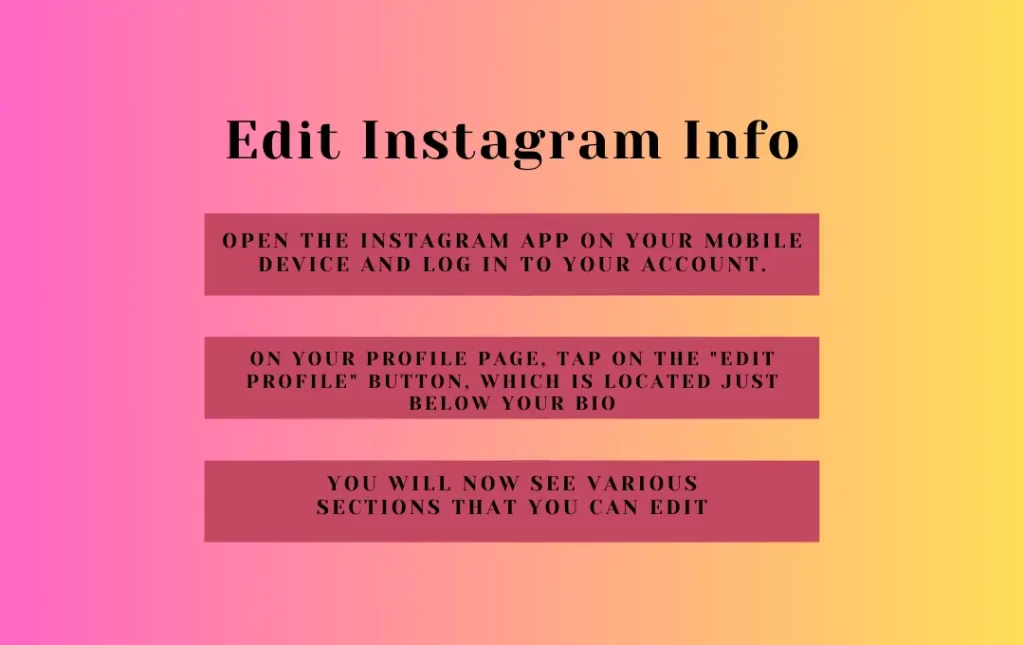
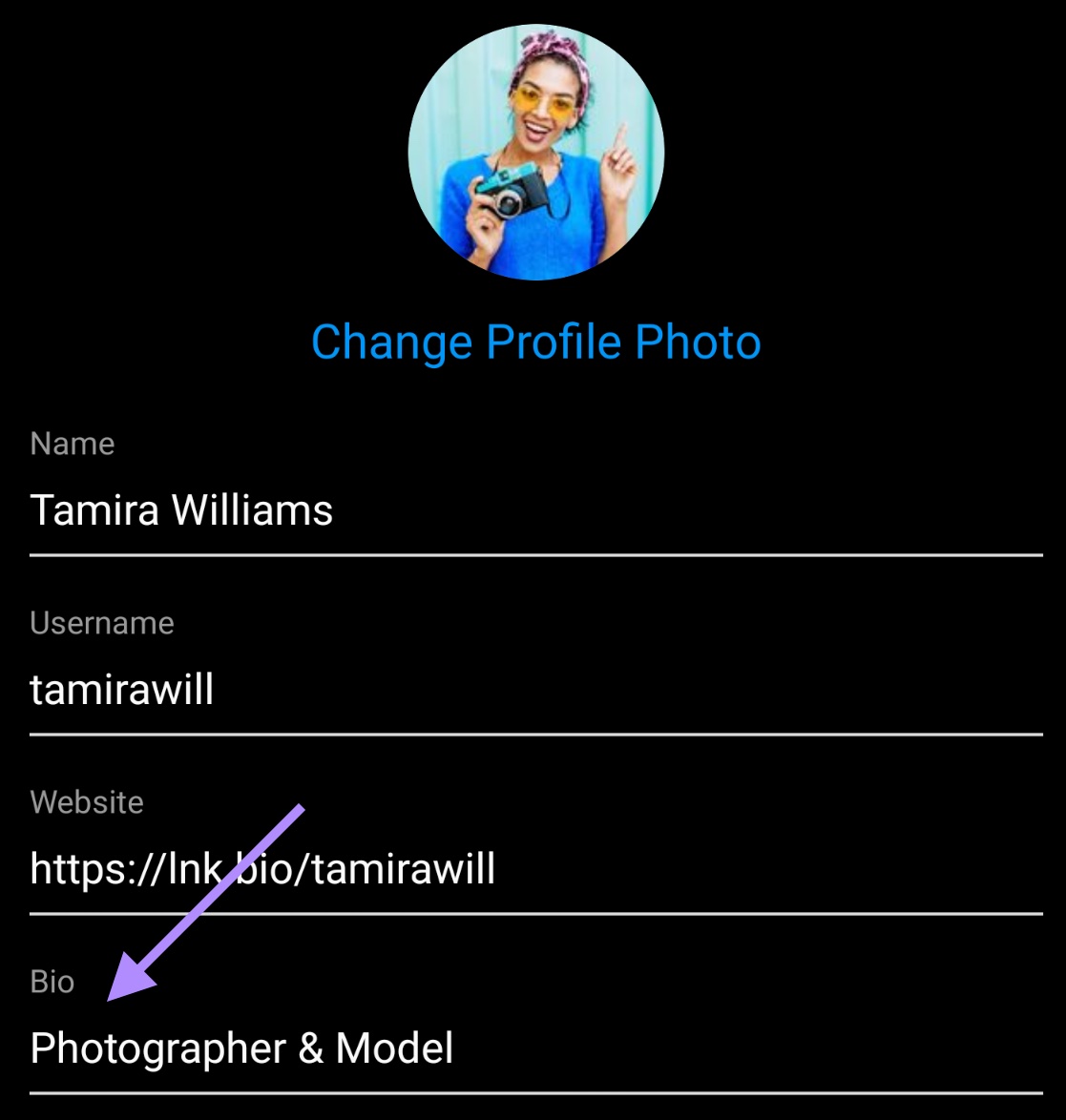
When it comes to social media, it's essential to keep your personal information up-to-date and accurate. Whether you've moved to a new location, changed your phone number, or simply want to update your profile, Instagram makes it easy to edit your personal information. In this article, we'll walk you through the steps to edit your personal information on Instagram, ensuring that your profile is current and secure. ## 1. Accessing Your Profile To edit your personal information on Instagram, you'll need to access your profile. To do this, tap the profile icon in the bottom right corner of the screen, then tap "Edit Profile." This will take you to a page where you can view and edit your profile information. ## 2. Changing Your Name If you need to change your name on Instagram, tap the "Name" field and enter your new name. You can change your first name, last name, or both. Keep in mind that Instagram may require you to verify your identity if you change your name, especially if you're changing it to something significantly different. ## 3. Updating Your Username Your username is your unique identifier on Instagram, and you can change it by tapping the "Username" field. Enter your new username, and make sure it's available by tapping the "Check Availability" button. If the username is available, you can save the changes. ## 4. Adding or Changing Your Email Address To add or change your email address on Instagram, tap the "Email" field and enter your new email address. Make sure to use an email address that you have access to, as Instagram may send you verification emails or password reset links. ## 5. Changing Your Phone Number If you need to change your phone number on Instagram, tap the "Phone Number" field and enter your new phone number. You may be required to verify your new phone number by entering a verification code sent to you by Instagram. ## 6. Updating Your Birthday To update your birthday on Instagram, tap the "Birthday" field and enter your new birthdate. Keep in mind that you may need to provide identification to verify your age if you're changing your birthday to a date that would make you older or younger than you initially stated. ## 7. Changing Your Gender If you need to change your gender on Instagram, tap the "Gender" field and select your preferred gender. Instagram allows you to choose from a variety of options, including "Male," "Female," "Non-binary," and more. ## 8. Adding or Changing Your Bio Your bio is a great place to tell your followers a little bit about yourself. To add or change your bio, tap the "Bio" field and enter your new bio. You can include up to 150 characters, so keep it concise and engaging. ## 9. Updating Your Contact Information If you have a website, Facebook page, or other social media profiles, you can add them to your Instagram profile by tapping the "Contact Options" field. This allows your followers to easily find and connect with you on other platforms. ## 10. Changing Your Profile Picture Your profile picture is the first thing people see when they visit your profile, so make sure it's up-to-date and represents you well. To change your profile picture, tap the "Profile Picture" icon and select a new photo from your gallery or take a new one. ## 11. Adding or Changing Your Story Highlights Story highlights are a great way to showcase your favorite memories and experiences. To add or change your story highlights, tap the "Story Highlights" field and select the stories you want to feature. You can add up to 100 highlights, and they'll be displayed on your profile for all to see. ## 12. Updating Your Language Preferences If you want to change the language of your Instagram interface, tap the "Language" field and select your preferred language. Instagram supports over 30 languages, so you can choose the one that's most comfortable for you. ## 13. Changing Your Country or Region If you've moved to a new country or region, you may need to update your location on Instagram. To do this, tap the "Country or Region" field and select your new location. This will ensure that you receive the correct time zone, currency, and other location-specific features. ## 14. Adding or Changing Your Account Type If you're a business or creator, you may want to switch to a professional account on Instagram. To do this, tap the "Account Type" field and select "Professional." This will give you access to additional features, such as analytics and advertising tools. ## 15. Reviewing and Saving Your Changes Once you've made all the necessary changes to your personal information, review your profile to ensure everything is accurate and up-to-date. If you're happy with your changes, tap "Save" to save your profile. If you need to make any further changes, you can do so at any time by accessing your profile and tapping "Edit Profile."Edit Profile - Instagram | PDF

Edit Profile - Instagram | PDF
Instagram Profile Edit: Guide To Built-in Tool & 2 Alternatives
Instagram Profile Edit: Guide to Built-in Tool & 2 Alternatives
How To Edit Instagram Bio? | Best Way To Edit Instagram Bio (Complete
How to Edit Instagram Bio? | Best Way to Edit Instagram Bio (Complete ...
Instagram Profile Edit: Guide To Built-in Tool & 2 Alternatives
Instagram Profile Edit: Guide to Built-in Tool & 2 Alternatives
The Edit Profile - Instagram - Jarvee

The Edit Profile - Instagram - Jarvee
How Do You Edit Your Instagram Bio?
How do you edit your Instagram bio?